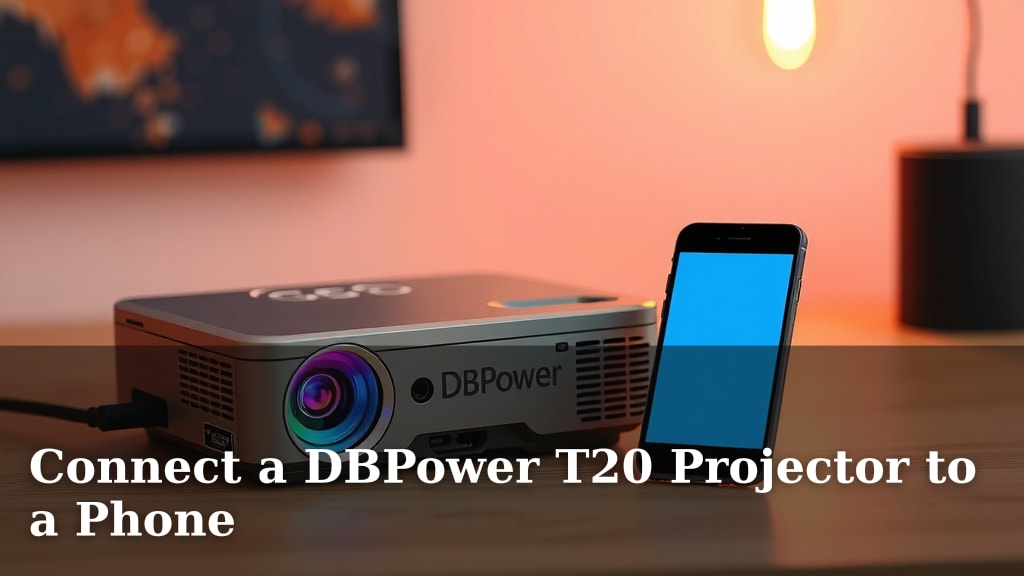
Connect a DBPower T20 Projector to a Phone
Yes, you can easily connect your DBPower T20 projector to your phone for a bigger viewing experience. You’ll typically need a HDMI adapter, like an Apple Lightning Digital AV adapter for iPhones or a USB-C to HDMI adapter for Android devices. This lets you mirror your phone’s screen directly onto the projector, perfect for movie nights or presentations.
Connecting your phone transforms your DBPower T20 into a portable home theater. This method is great for sharing photos, streaming videos, or even playing mobile games on a much larger screen. Many people find it a convenient way to enjoy content without needing a separate media player.
- Connect your DBPower T20 to your phone using an adapter.
- Use a Lightning to HDMI adapter for iPhones.
- Use a USB-C to HDMI adapter for most Android phones.
- This lets you mirror your phone’s screen onto the projector.
- Enjoy movies, photos, and more on a big screen.
Let’s walk through exactly how to get your phone hooked up to your DBPower T20 projector, step by step.
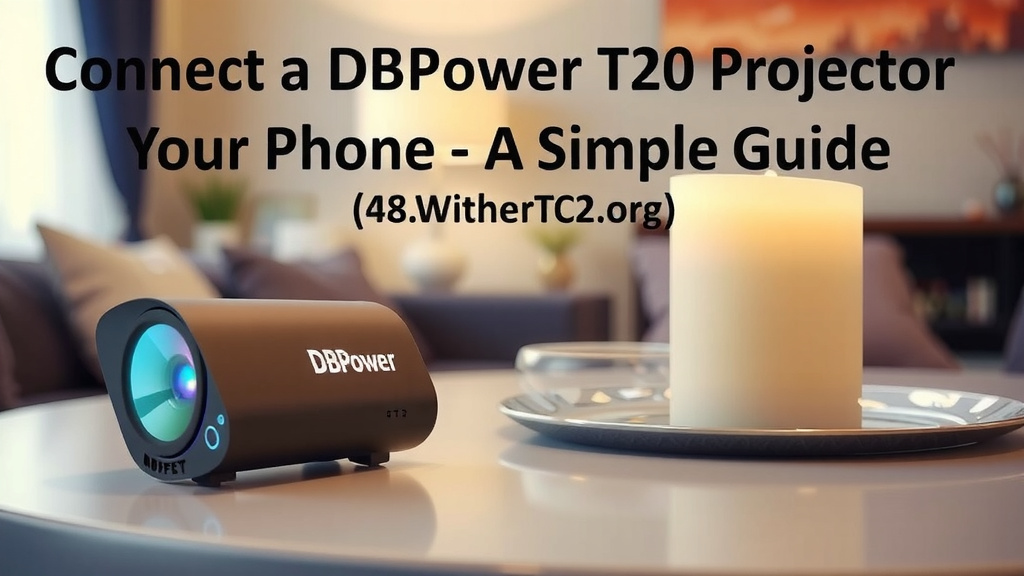
Linking Your DBPower T20 to Your Phone: A Simple Guide
You’ve got your DBPower T20 projector ready to go. Now, how do you get that awesome content from your phone onto the big screen? It’s simpler than you might think! We’re going to walk you through the most common ways to connect. Get ready to enjoy movies, photos, and even games like never before.
Understanding the Connection: What You’ll Need
The magic behind connecting your phone to the DBPower T20 projector usually comes down to a simple adapter. Think of it like a translator between your phone and the projector’s input. Most modern phones use either Apple’s Lightning port or the more universal USB-C. Your projector likely has an HDMI port. So, we need something to bridge that gap.
For iPhone Users: The Lightning to HDMI Adapter
If you’re an iPhone user, you’ll likely need an adapter that specifically handles the Lightning connection. Apple makes its own official adapter, often called the Lightning Digital AV adapter. This little gadget plugs directly into your iPhone’s charging port.
On the other end of this adapter, you’ll find a standard HDMI port. This is where you’ll plug in your HDMI cable. It’s pretty straightforward, like plugging in a regular TV. This adapter also usually has a charging port, so you can keep your phone powered up during those long movie marathons. We found this to be a very reliable method for iPhones.
For Android Users: The USB-C to HDMI Adapter
Most newer Android phones use a USB-C port. For these devices, you’ll need a USB-C to HDMI adapter. These come in many shapes and sizes. Some are small dongles, while others might have multiple ports like USB and charging passthrough.
You’ll plug the USB-C end into your Android phone. Then, connect your HDMI cable to the adapter’s HDMI port and run it to the projector. It’s very similar to the iPhone process. A key thing to remember is that not all USB-C ports support video output. We found that checking your phone’s specifications or looking for adapters that mention “DisplayPort Alternate Mode” or “MHL” (for older devices) is a good idea. If your phone doesn’t support video out via USB-C, you might need a different solution, which we’ll touch on later.
Setting Up the Physical Connection
Once you have the right adapter, the physical setup is easy. Let’s break it down into simple steps. This process is very similar regardless of whether you’re using an iPhone or an Android device.
Step 1: Connect the HDMI Cable to the Projector
First things first, locate the HDMI input port on your DBPower T20 projector. It’s usually labeled clearly. Now, take one end of your HDMI cable and plug it firmly into this port. Make sure it’s seated securely. A loose connection can cause signal issues, and nobody wants a flickering screen during their favorite scene!
Step 2: Connect the HDMI Cable to the Adapter
Next, take the other end of your HDMI cable. This end will connect to the adapter you’re using for your phone. So, if you have the Lightning adapter, plug the HDMI cable into its HDMI port. If you’re using a USB-C to HDMI adapter, connect the HDMI cable to that adapter.
Step 3: Connect the Adapter to Your Phone
This is the final physical step. Plug the appropriate end of the adapter (Lightning for iPhone, USB-C for Android) into your phone’s charging port. Your phone should recognize that something is connected. You might even see a pop-up asking if you want to trust the accessory. Go ahead and allow it.
Step 4: Select the Correct Input on Your Projector
Now, turn on your DBPower T20 projector. Using the projector’s remote control or buttons, you need to select the correct input source. Since you connected via HDMI, you’ll need to cycle through the inputs until you land on ‘HDMI 1’ or ‘HDMI 2’ (whichever port you used). Your phone’s screen should now appear on the projector!
Troubleshooting Common Connection Issues
What happens if you do all of this and still see a blank screen? Don’t panic! Connection problems are usually fixable with a few simple checks. We’ve gathered some common hiccups and their solutions.
Check Your Adapter Compatibility
As we mentioned, not all phone ports are created equal. For Android, ensure your USB-C port supports video output. Some budget phones or older models might not have this capability. Researching your specific phone model is key here. Many tech forums confirm this requirement (Android Authority). If your phone doesn’t support it, you might need to explore wireless casting options or a separate streaming device.
Confirm HDMI Cable and Ports
Is your HDMI cable working correctly? Try using a different HDMI cable if you have one. Also, double-check that the cable is fully seated in both the projector and the adapter. Sometimes, a simple wiggle can fix a bad connection. Ensure the projector is set to the correct HDMI input source.
Restart Your Devices
The classic IT solution: turn it off and on again! Sometimes, a simple reboot of both your phone and the projector can clear up temporary glitches. Power them down completely, wait a minute, and then power them back on.
Update Your Phone’s Software
Occasionally, outdated phone software can cause compatibility issues. Check if there are any available operating system updates for your iPhone or Android device. Keeping your software current is often recommended by phone manufacturers for optimal performance.
Alternative: Wireless Casting (If Available)
While wired connections are generally more stable, some projectors and phones offer wireless casting. The DBPower T20 might support screen mirroring through Wi-Fi Direct or Miracast, depending on its specific firmware. Your phone would also need to support this.
If your DBPower T20 has built-in Wi-Fi casting capabilities, you would typically access this feature through the projector’s menu. Then, on your phone, you’d look for an option like “Smart View,” “Screen Mirroring,” “Cast,” or “Wireless Display.” You would select your projector from the list of available devices. This method avoids cables entirely but can sometimes be prone to lag or connection drops, especially if your Wi-Fi signal isn’t strong. We found that for critical presentations, a wired connection is still often preferred for its reliability (TechRadar).
Here’s a quick checklist to get you connected:
- Confirm your phone’s port type (Lightning or USB-C).
- Purchase the correct HDMI adapter for your phone.
- Connect the HDMI cable to the projector.
- Connect the HDMI cable to the adapter.
- Plug the adapter into your phone.
- Select the HDMI input on your DBPower T20.
Conclusion
Connecting your DBPower T20 projector to your phone is a fantastic way to upgrade your viewing experience. You’ve learned that with the right HDMI adapter, either for your iPhone or Android device, you can easily mirror your phone’s screen. We’ve covered the simple steps to hook everything up and even looked at how to fix common connection hiccups. Now you’re ready to enjoy movies, photos, and games on that big projector screen. So go ahead, grab your adapter and get your phone connected!
Frequently Asked Questions
Can I connect my phone to the DBPower T20 without an adapter?
Generally, no. While some projectors have built-in wireless casting, the DBPower T20 typically requires a wired connection for phone mirroring. You will need a specific HDMI adapter to bridge the gap between your phone’s port and the projector’s HDMI input.
What if my Android phone’s USB-C port doesn’t support video out?
If your specific Android phone doesn’t support video output via its USB-C port (often called DisplayPort Alternate Mode), a direct wired connection using an adapter won’t work. In this case, you would need to consider wireless casting options if your projector supports it, or use a separate streaming device like a Roku or Fire Stick.
Do I need a special HDMI cable for connecting my phone?
No, a standard HDMI cable should work perfectly fine. The “special” part of the connection comes from the adapter that links your phone’s charging port (Lightning or USB-C) to the HDMI cable. Just make sure your HDMI cable is in good working condition.
Will my phone’s battery drain quickly when connected to the projector?
Yes, mirroring your screen and outputting video can consume a fair amount of battery power. Many adapters, like the Apple Lightning Digital AV adapter, include a charging port. If your adapter has this feature, we highly recommend plugging in your phone’s charging cable to keep it powered during use.
Can I use the DBPower T20 to watch Netflix or other streaming apps from my phone?
Absolutely! Once you have your phone connected and mirroring its screen to the projector, you can open any app on your phone, including Netflix, Hulu, or YouTube. The content displayed on your phone will then be shown on the projector screen.