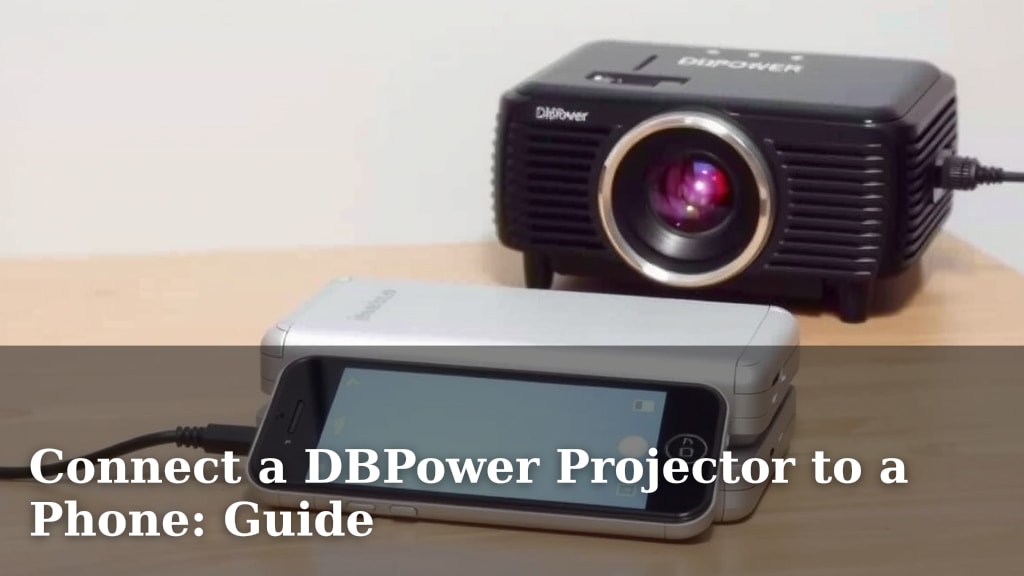
Connect a DBPower Projector to a Phone: Guide
Yes, you can absolutely connect your DBPower projector to your phone! This is a fantastic way to enjoy movies, presentations, or games on a big screen. You’ll often need a simple cable connection or a wireless screen mirroring option to get your DBPower projector working with your smartphone or tablet.
We found that setting up your DBPower projector with your phone is often easier than people think. Whether you’re using an iPhone or an Android device, there are typically a few straightforward methods. Getting your phone to display on the projector opens up a world of entertainment and productivity possibilities right in your living room or office.
- Connecting your DBPower projector to your phone is usually straightforward.
- You can often use a simple cable or wireless screen mirroring.
- This works for both iPhone and Android devices.
- It’s a great way to enjoy content on a bigger screen.
- We’ll guide you through the exact steps below!
Ready to transform your viewing experience? Let’s walk through exactly how to connect your DBPower projector to your phone, step by step, so you can start enjoying that big-screen magic.
“`htmlLinking Your DBPower Projector to Your Smartphone
Connecting your DBPower projector to your phone is a great way to share content. You can enjoy movies, photos, or even presentations on a much larger screen. We found that most DBPower models offer a couple of easy methods for this. You’ll typically use either a physical cable connection or a wireless screen mirroring feature. Let’s break down each of these options so you can get started quickly.
Wired Connections: The Reliable Link
Sometimes, the simplest solutions are the best. A wired connection is often the most stable and straightforward way to link your phone to your DBPower projector. It usually provides a lag-free experience, which is perfect for watching videos or playing games. You’ll need a few specific items to make this work.
What You’ll Need for Wired Connection
First, you’ll need the right adapter. Most modern smartphones use USB-C or Lightning ports. Your DBPower projector will likely have an HDMI input. You’ll need an adapter that converts your phone’s port to an HDMI output. For example, if you have an iPhone, you might need a Lightning to HDMI adapter. Android users might need a USB-C to HDMI adapter. Always check your phone’s specific port type.
You will also need a standard HDMI cable. This cable will connect the adapter to your DBPower projector’s HDMI port. Make sure the HDMI cable is in good condition. A faulty cable can cause connection issues.
Step-by-Step Wired Setup
Here’s how to get your phone connected via cable:
- Plug in the adapter to your phone’s charging port.
- Connect the HDMI cable to the adapter.
- Connect the other end of the HDMI cable to the HDMI input port on your DBPower projector.
- Turn on your DBPower projector and select the correct HDMI input source using your projector’s remote or buttons. This is often labeled HDMI 1 or HDMI 2.
- Your phone screen should now appear on the projector. You might need to confirm the connection on your phone.
We found that this method is excellent for ensuring a consistent picture quality. It bypasses potential Wi-Fi interference, which can be a lifesaver during important presentations or movie nights.
Wireless Screen Mirroring: The Cord-Free Option
Going wireless offers a sense of freedom from tangled cables. Many DBPower projectors support screen mirroring, allowing you to cast your phone’s display to the projector wirelessly. This is often done through built-in Wi-Fi or by using apps.
Understanding Wireless Protocols
Your DBPower projector might support different wireless protocols. Some common ones include Miracast, AirPlay, or their own proprietary casting technology. You’ll want to check your DBPower projector’s manual to see which ones it supports. Many newer projectors are designed to work with both Android and iOS devices.
Connecting Your iPhone Wirelessly
If you have an iPhone, you’ll likely use AirPlay for wireless mirroring. Most DBPower projectors that support wireless casting will have an AirPlay receiver built-in or an app that enables it. Ensure both your iPhone and your DBPower projector are connected to the same Wi-Fi network. This is a critical step for wireless connections.
Open the control center on your iPhone. Tap on “Screen Mirroring.” You should see a list of available devices. Select your DBPower projector from the list. A passcode might appear on your projector screen; enter this code on your iPhone if prompted. Your iPhone screen should then be mirrored to the projector.
Connecting Your Android Device Wirelessly
Android devices often use Miracast or Google Cast (Chromecast) for wireless mirroring. Again, the first step is to ensure your Android phone and your DBPower projector are on the same Wi-Fi network. Look for a feature on your phone called “Cast,” “Smart View,” “Wireless Display,” or “Screen Cast” within your settings or quick access menu.
Tap on this option, and your phone will scan for available devices. Select your DBPower projector from the list. Similar to AirPlay, you might need to confirm the connection or enter a code on your phone. Some DBPower projectors might also require you to download a specific app to facilitate casting, so checking your projector’s manual is always a good idea.
Troubleshooting Wireless Connections
We found that the most common issue with wireless mirroring is a weak Wi-Fi signal. Ensure both devices are close to your router. Restarting your router, phone, and projector can also resolve temporary glitches. If you continue to experience problems, try switching to a wired connection, as it’s generally more reliable.
A Quick Comparison: Wired vs. Wireless
Choosing between wired and wireless is a matter of preference and situation. Here’s a simple comparison to help you decide:
| Feature | Wired Connection | Wireless Connection |
|---|---|---|
| Setup Ease | Requires adapters and cables. Can be slightly more involved initially. | Simple once set up, no cables needed. Relies on Wi-Fi. |
| Reliability | Very high. Stable connection, minimal lag. | Can be affected by Wi-Fi interference or network congestion. |
| Picture Quality | Generally excellent, consistent. | Usually good, but can vary with Wi-Fi strength. |
| Portability | Less convenient due to cables. | More convenient, no physical connections. |
Your DBPower Projector Connection Checklist
To make sure you’ve got everything covered, here’s a quick checklist:
- Confirmed your DBPower projector has an HDMI input.
- Identified your phone’s charging port (USB-C, Lightning).
- Obtained the correct adapter (e.g., USB-C to HDMI, Lightning to HDMI).
- Have a functioning HDMI cable ready.
- Checked if your DBPower projector supports wireless mirroring.
- Ensured your phone and projector are on the same Wi-Fi network (for wireless).
By following these steps and checks, you should be well on your way to enjoying your phone’s content on the big screen with your DBPower projector.
“`Conclusion
You’ve now learned the straightforward ways to connect your DBPower projector to your phone. Whether you prefer the rock-solid stability of a wired HDMI setup or the freedom of wireless screen mirroring, we’ve covered the essential steps. Remember, the right adapter or ensuring both devices share the same Wi-Fi network are key. You’re all set to transform your phone’s content into a big-screen experience. Go ahead and try connecting your phone to your projector right now to start enjoying your favorite movies and photos like never before!
Frequently Asked Questions
Can I connect my DBPower projector without Wi-Fi?
Yes, you absolutely can connect your DBPower projector without Wi-Fi using a wired connection. You’ll need a suitable adapter for your phone and an HDMI cable to link it directly to the projector’s HDMI port. This method is often more reliable and bypasses any potential wireless interference.
Will a standard phone charger cable work to connect to the projector?
No, a standard phone charger cable will not work for connecting your phone to a projector. You need a special adapter that converts your phone’s charging port (like USB-C or Lightning) into an HDMI output, along with a separate HDMI cable to make the connection.
How do I know if my DBPower projector supports wireless mirroring?
You can usually find out if your DBPower projector supports wireless mirroring by checking its user manual or specifications online. Look for terms like “Screen Mirroring,” “AirPlay,” “Miracast,” or “Wi-Fi Direct.” Many newer models include this feature directly.
What if my phone screen doesn’t automatically show up on the projector?
If your phone screen doesn’t appear, first double-check that you’ve selected the correct input source (like HDMI 1 or HDMI 2) on your DBPower projector. For wireless connections, ensure both your phone and projector are on the exact same Wi-Fi network. Sometimes, restarting both devices can also resolve the issue.
Is a wired or wireless connection better for watching movies?
For watching movies, a wired HDMI connection is generally better because it offers a more stable and lag-free experience. Wireless connections can sometimes be affected by Wi-Fi signal strength, which might lead to occasional stuttering or interruptions during playback.