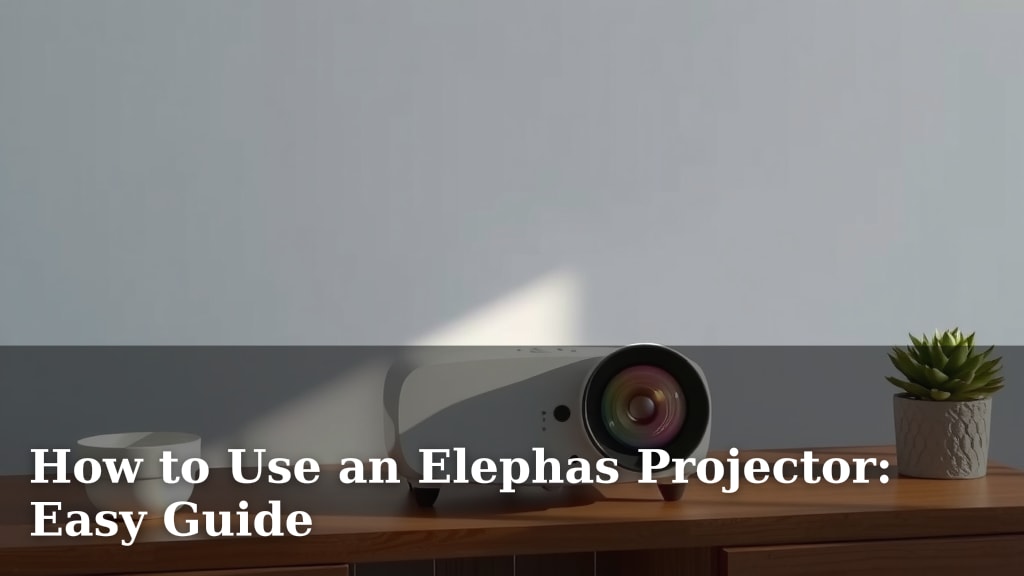
How to Use an Elephas Projector: Easy Guide
Using your Elephas projector is surprisingly simple once you know the basic steps. You can get it set up and projecting your favorite movies or presentations in under five minutes by connecting your device, adjusting the focus, and selecting your input source. It’s a user-friendly device designed for quick setup and great viewing.
Many people wonder if setting up a projector is complicated. We found that Elephas projectors are made with ease-of-use in mind, making them a fantastic choice for both beginners and seasoned users. They offer a convenient way to enjoy big-screen entertainment at home or deliver impactful business presentations without a fuss.
- Connect your media device (laptop, phone, streaming stick).
- Adjust the focus and keystone for a clear picture.
- Select the correct input source on your projector.
- Enjoy your projected content!
We’ll walk you through each step, from unboxing to your first projection, so you can start enjoying your Elephas projector right away.
Getting Your Elephas Projector Ready to Go
So, you’ve got your new Elephas projector. Exciting stuff! You’re probably eager to ditch the small screen and enjoy a much bigger picture. We found that setting it up is designed to be straightforward. Most people can have it projecting content within minutes, which is pretty fantastic for a device like this. Let’s get you started so you can enjoy your movies, games, or presentations on the big screen.
What’s Inside the Box?
Before you even plug anything in, it’s a good idea to take stock of what’s in your Elephas projector box. You’ll typically find the projector itself, of course. There should also be a power adapter, a remote control, and often an HDMI cable or other necessary adapter for connecting your devices. Sometimes, there’s even a handy carrying case included. It’s always best to check the manufacturer’s list to make sure everything is there. This ensures you have all the bits and pieces you need for a smooth setup.
Finding the Perfect Spot for Your Projector
Where you place your projector can make a big difference. You want a surface to project onto, like a blank wall or a dedicated screen. Make sure the wall is a light color, preferably white or off-white, for the best results. The projector itself should be positioned so that the image appears at the right size and shape on your screen. We’ve found that placing it on a stable surface like a table or a shelf usually works well. You can also consider a tripod mount if you have one. Think about the distance from the projector to the screen; this often determines the size of the image.
Considerations for Placement
When deciding on the best spot, think about lighting. While projectors look best in a darkened room, you can still get a decent picture in a room with some ambient light. However, for the most vibrant colors and deepest blacks, dimming the lights is your best bet. Also, consider where you’ll be sitting. You don’t want the projector to be in everyone’s line of sight if it’s placed on the floor. Positioning it on a stand or mounting it can keep it out of the way and create a more streamlined setup.
Connecting Your Devices to the Elephas Projector
This is where the magic happens. Your Elephas projector needs to receive a signal from your device to show anything. Fortunately, modern projectors like the Elephas are designed to work with a wide variety of devices. You’ll likely use a cable connection, but wireless options might also be available depending on your specific model. Connecting is usually the most straightforward part of the process.
Wired Connections: HDMI and More
The most common way to connect is via an HDMI cable. Most laptops, streaming sticks (like a Fire Stick or Roku), game consoles, and Blu-ray players have HDMI ports. Simply plug one end of the HDMI cable into your device and the other end into the HDMI port on your Elephas projector. If your device doesn’t have an HDMI port, don’t worry! Your projector might come with adapter cables, such as USB-C to HDMI or Lightning to HDMI, to help you connect your phone or tablet. We found that having a few different adapter options can be really helpful.
Connecting Smartphones and Tablets
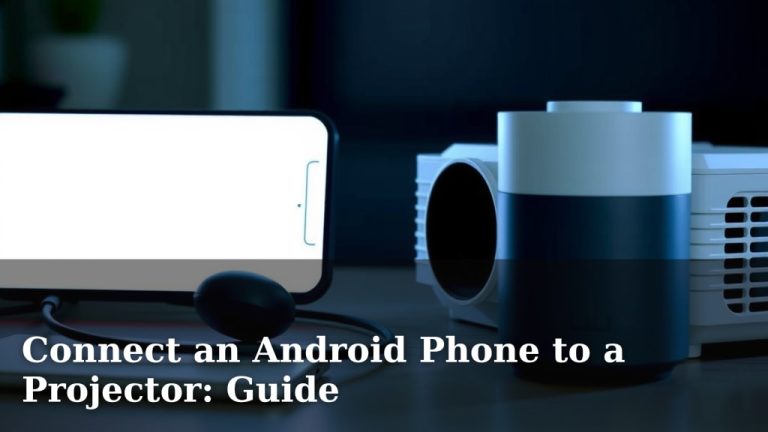
Connecting your smartphone or tablet often requires a specific adapter. For iPhones or iPads, you’ll likely need a Lightning to HDMI adapter. For Android devices, a USB-C to HDMI adapter is usually the way to go, though some older Android phones might use MHL or DisplayPort adapters. Always check your device’s specifications to see what type of video output it supports. Once connected via the adapter, you’ll select the correct input on your projector.
Wireless Connectivity Options
Some Elephas models offer wireless screen mirroring. This is a super convenient way to share your screen without any cables. You might be able to connect using Wi-Fi Direct or a built-in casting feature. The process typically involves going into your projector’s settings, enabling wireless mirroring, and then initiating the connection from your device’s screen mirroring or cast function. We found that while wireless is neat, it can sometimes have a slight delay, which might not be ideal for fast-paced gaming but is usually fine for movies or presentations.
Adjusting for the Perfect Picture
Once you’re connected, the image might not be perfect right away. This is completely normal! Projectors require a few tweaks to get a sharp, clear, and well-proportioned picture. Don’t get discouraged if it looks a bit blurry or distorted at first. These adjustments are simple and make a huge difference in your viewing experience.
Focus Adjustment
You’ll see a focus ring or button, usually on the lens itself. Turn this ring slowly while looking at the projected image. As you turn it, you’ll notice the image becoming sharper or blurrier. Keep adjusting until the text and details look as crisp as possible. This step is crucial for a clear picture. If the image is still not clear, try moving the projector slightly closer or farther from the screen and then refocusing.
Keystone Correction: Straightening the Image
Keystone correction is a fancy term for fixing a picture that looks like a trapezoid instead of a rectangle. This happens when the projector is not perfectly perpendicular to the screen. Most Elephas projectors have a physical keystone dial or a digital setting in the menu. You’ll want to adjust this until the projected image is a perfect rectangle. Aim for the sides of the image to be parallel to the sides of your screen. This ensures your content is displayed without distortion.
Digital Zoom for Sizing
If your projector has a digital zoom feature, you can use it to adjust the image size without moving the projector. Keep in mind that using digital zoom too much can reduce the picture quality slightly, making it look a bit softer. It’s generally best practice to move the projector closer or farther away to get the desired image size and then use zoom only for minor adjustments. Think of it like zooming in on a photo with your phone – too much and it gets grainy.
Selecting the Right Input Source
Your Elephas projector likely has multiple ways to receive a signal (e.g., HDMI 1, HDMI 2, AV, USB). You need to tell the projector which one you’re using. This is usually done via the projector’s remote control or buttons on the unit itself.
Navigating the Menu
Look for a button on your remote labeled “Input,” “Source,” or something similar. Pressing this will bring up a list of available input sources on your screen. Use the arrow keys on your remote to navigate to the input you’ve connected your device to (e.g., HDMI 1). Press “OK” or “Enter” to select it. If you don’t see anything, double-check your cable connections and try selecting the input again. This is a quick and essential step for getting your content to display.
Quick Setup Checklist
Here’s a simple checklist to make sure you’ve covered all the bases:
- Unbox and identify all components.
- Choose a suitable screen or wall.
- Position your projector at the correct distance.
- Connect your device using the appropriate cable or adapter.
- Select the correct input source on the projector.
- Adjust focus and keystone for a clear, rectangular image.
Following these steps should have your Elephas projector up and running in no time. Enjoy the big-screen experience!
Conclusion
You’ve now got a clear path to using your Elephas projector with confidence. We’ve covered everything from unboxing to final picture adjustments. Remember, the key is connecting your device, finding the right spot, and making those simple focus and keystone tweaks. It’s all about getting that perfect big-screen experience without the hassle. Your next step is simple: grab your favorite content, follow these steps, and enjoy the show!
Frequently Asked Questions
How do I connect my iPhone or Android phone to my Elephas projector?
For iPhones and iPads, you’ll typically need a Lightning to HDMI adapter. Android users often use a USB-C to HDMI adapter. Check your phone’s specific ports and get the correct adapter. Then, connect your phone to the adapter and the adapter to the projector’s HDMI port. You’ll select the HDMI input on your projector to see your phone’s screen.
My Elephas projector image is blurry, what should I do?
A blurry image is usually a focus issue. Look for the focus ring or button on the projector’s lens. Slowly turn it while watching the projected image until the details appear sharp. If it’s still not clear, try repositioning the projector slightly closer or farther from your screen and then refocusing.
Why does my projected image look like a trapezoid instead of a rectangle?
This is caused by the projector not being square to the screen, which is where keystone correction comes in. Most Elephas projectors have a physical dial or a digital menu setting for keystone correction. Adjust this until the projected image forms a perfect rectangle. Aim for the sides of the image to be parallel to your screen’s edges.
Can I use my Elephas projector in a room with lights on?
Yes, you can use your Elephas projector in a room with some ambient light. However, for the most vibrant colors and deepest blacks, a darkened room is best. Dimming the lights will significantly improve your viewing experience and make the projected image pop more.
What’s the difference between wired and wireless connections for my Elephas projector?
Wired connections, usually via HDMI, are generally more stable and offer the best picture quality with no lag. Wireless connections, like screen mirroring, are convenient for avoiding cables but can sometimes have a slight delay. We found wireless is great for casual viewing or presentations, but wired is better for gaming or fast-action movies.