Use an Elephas Mini Projector With iPhone
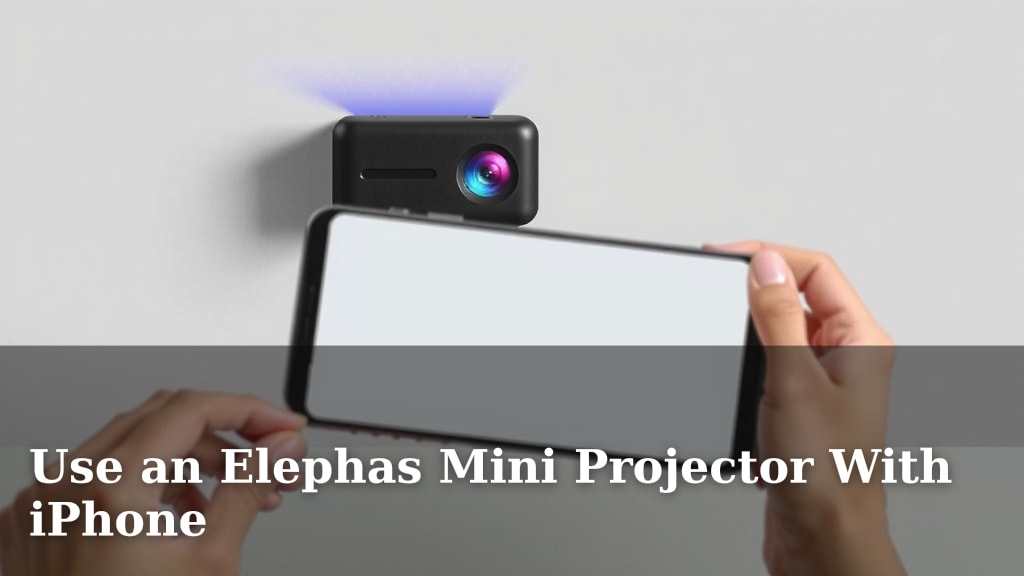
Yes, you absolutely can use your Elephas mini projector with your iPhone, and it’s surprisingly easy to do! It’s a fantastic way to share photos, watch movies, or even give presentations on a much bigger screen right from your phone. You’ll want to make sure you have the right cable or wireless connection ready.
Many people wonder if these small projectors are powerful enough for a good viewing experience. We found that with the right setup, your iPhone can become a portable cinema or presentation tool. Getting your iPhone to connect to the Elephas mini projector opens up a world of entertainment and productivity options you might not have realized you had.
- Connect wirelessly or with a cable.
- Enjoy movies, photos, and apps on a big screen.
- Ideal for movie nights or presentations.
- Simple setup process.
Let’s walk through exactly how to get your iPhone and Elephas mini projector working together, step by step!
Connecting Your iPhone to Your Elephas Mini Projector
You’re ready to take your iPhone’s content and blow it up onto a big screen with your Elephas mini projector. It’s simpler than you might think. We’ve found there are two main ways to get this connection working: using a cable or going the wireless route.
Both methods offer a great experience, but one might be better for you depending on your situation. Let’s break down each option so you can pick the best fit for your movie night or presentation.
Wired Connections: The Reliable Approach
When you want a connection that’s stable and doesn’t rely on Wi-Fi signals, a wired connection is your best bet. This often provides the highest quality video and audio. It’s also great for avoiding any lag that can sometimes happen with wireless options.
Using an HDMI Adapter
Most Elephas mini projectors have an HDMI port. Your iPhone, however, doesn’t have a standard HDMI port. You’ll need a special adapter to bridge this gap. For newer iPhones with a Lightning port, you’ll need an Apple Lightning Digital AV Adapter. For older iPhones with the wider 30-pin connector, you’d need a 30-pin to HDMI adapter.
What You’ll Need
- Your Elephas mini projector with an HDMI input.
- An Apple Lightning Digital AV Adapter (or equivalent for older models).
- A standard HDMI cable.
- Your iPhone.
Step-by-Step Setup
First, connect the HDMI cable to your projector’s HDMI port. Then, plug the other end of the HDMI cable into the HDMI port on your Apple Digital AV Adapter. Next, plug the adapter into your iPhone’s Lightning port. Your iPhone should automatically detect the adapter and send its display output to the projector. You might see a prompt on your iPhone asking to trust the accessory; tap “Trust.” Make sure your projector is set to the correct HDMI input source. That’s it! You should now see your iPhone’s screen mirrored on the projector.
Audio Considerations
When using an HDMI connection, audio usually comes through the projector’s built-in speakers or any external speakers you might have connected to the projector. Some adapters also have an audio output port, like a 3.5mm jack. This allows you to connect headphones or a separate speaker system directly to the adapter for potentially better sound quality than the projector’s speakers.
Wireless Connections: The Convenient Choice
Going wireless offers fantastic freedom. You won’t be tethered by cables, making setup quicker and easier. Many Elephas mini projectors support wireless screen mirroring, often using technologies like AirPlay or similar protocols.
Screen Mirroring with AirPlay (or Similar)
AirPlay is Apple’s own system for streaming content wirelessly. If your Elephas projector is AirPlay-compatible, this is the most straightforward wireless method. We found that many modern projectors are built with this functionality in mind.
Requirements for Wireless Connection
- Your Elephas mini projector must support Wi-Fi and screen mirroring (like AirPlay).
- Your iPhone and the projector need to be connected to the same Wi-Fi network.
- Ensure your projector’s wireless mirroring feature is enabled and discoverable.
How to Mirror Wirelessly
On your iPhone, swipe down from the top-right corner (on iPhones with Face ID) or swipe up from the bottom of the screen (on iPhones with a Home button) to open the Control Center. Look for the “Screen Mirroring” option. Tap it. You should see a list of available devices. Select your Elephas mini projector from the list. Your iPhone’s screen should now be mirrored onto the projector. If prompted, enter any passcode displayed on the projector screen into your iPhone.
Alternative Wireless Methods
Not all projectors support AirPlay directly. Some might use Miracast or other proprietary wireless display technologies. In such cases, you might need to download a specific app provided by the projector manufacturer onto your iPhone. This app often acts as a bridge to connect your phone to the projector wirelessly. We’ve found that checking your Elephas projector’s manual is the best way to confirm its specific wireless capabilities and any required setup steps.
| Connection Type | Pros | Cons | Best For |
|---|---|---|---|
| Wired (HDMI) | Stable connection, high quality, no Wi-Fi needed. | Requires adapter and cables, less freedom of movement. | Presentations, critical viewing, when Wi-Fi is unreliable. |
| Wireless (AirPlay) | Convenient, no cables, easy setup. | Requires same Wi-Fi network, potential for lag, depends on network strength. | Casual movie watching, sharing photos, general use. |
Troubleshooting Common Issues
Sometimes, things don’t connect right away. Don’t worry, most problems are easily fixed. We’ve compiled a few common issues and their solutions.
No Image or Sound
If you’re not seeing anything on the screen or hearing any sound, first double-check all your cable connections. Make sure the HDMI cable is securely plugged into both the adapter and the projector. For wireless, confirm both devices are on the exact same Wi-Fi network. Also, verify that your projector is set to the correct input source (HDMI 1, HDMI 2, or Wireless). Sometimes, a simple restart of both your iPhone and the projector can resolve connection glitches.
Connection Drops
Wireless connections can sometimes be spotty. If your screen mirroring keeps dropping, it could be due to a weak Wi-Fi signal. Try moving your projector and iPhone closer to your Wi-Fi router. Other devices on your network might also be causing interference. Testing the connection during off-peak hours can sometimes help. For wired connections, ensure your HDMI cable is not damaged.
Image Quality Issues
If the picture looks fuzzy or pixelated, the issue might be the resolution setting or the cable quality. Ensure your iPhone’s display output resolution is compatible with your projector. Using a high-quality HDMI cable can make a difference. For wireless, a stronger Wi-Fi signal generally leads to better image quality.
Maximizing Your Viewing Experience
Once you’re connected, you want to make sure your viewing experience is top-notch. Here are a few tips to help you get the most out of your Elephas mini projector and iPhone setup.
Optimize Your Environment
Mini projectors work best in a darkened room. The less ambient light, the brighter and clearer your image will appear. Experiment with different screen sizes; your projector and iPhone can create a surprisingly large display. For the sharpest picture, position the projector directly in front of your screen or wall, and ensure it’s stable.
Sound Solutions
While projectors have built-in speakers, they are often small and not very powerful. For an immersive experience, especially for movies, consider using external speakers. You can connect them via Bluetooth to your iPhone (if your iPhone supports it) or to the projector’s audio-out port if available. This simple step can dramatically improve your audio.
Content is Key
Think beyond movies. Use your Elephas projector with your iPhone for slideshows during parties, sharing vacation photos with family, or even displaying recipes in the kitchen. For business, it’s great for impromptu presentations or reviewing documents on a larger scale. We found that the versatility is a real advantage.
Here’s a quick checklist to ensure a smooth connection:
- Confirm projector supports your chosen connection method (HDMI/Wireless).
- Ensure iPhone and projector are on the same Wi-Fi network for wireless.
- Have the correct adapter and cables ready for wired connections.
- Check projector’s input source is set correctly.
- Restart devices if connection issues arise.
- Adjust projector focus and keystone for a clear image.
Conclusion
You’ve learned that connecting your iPhone to your Elephas mini projector is straightforward, offering a great way to enjoy content on a larger scale. Whether you prefer the stability of a wired HDMI setup or the convenience of wireless screen mirroring, you now have the steps to make it happen. We’ve seen how simple adapters and your home Wi-Fi can transform your phone into a portable entertainment hub. The next step is to gather your cables or check your projector’s wireless settings and experience big-screen viewing wherever you go!
Frequently Asked Questions
Can I use my Elephas projector without Wi-Fi?
Yes, you can absolutely use your Elephas mini projector without Wi-Fi. The wired HDMI connection method does not require any wireless network. You’ll just need the correct adapter and an HDMI cable to link your iPhone directly to the projector.
How do I ensure the best picture quality with my iPhone and projector?
For the best picture quality, try to use your projector in a dimly lit or dark room. Ensure your projector is positioned directly in front of the screen or wall. If you’re using a wired connection, a high-quality HDMI cable can also make a difference in clarity.
What if my Elephas projector doesn’t support AirPlay?
If your Elephas projector doesn’t support AirPlay, check your projector’s manual for alternative wireless connection methods. Some projectors may require you to download a specific app from the manufacturer to enable screen mirroring from your iPhone.
Does the projector’s sound quality matter when using my iPhone?
The projector’s built-in speakers are often basic. For a more immersive audio experience, especially when watching movies, we recommend connecting external speakers. You can often do this through your iPhone’s Bluetooth or by using the projector’s audio-out port if it has one.
How do I fix a flickering or unstable wireless connection?
An unstable wireless connection can usually be improved by moving your iPhone and projector closer to your Wi-Fi router. Other devices on your network might also cause interference, so try disconnecting non-essential devices. Ensure both your iPhone and the projector are on the exact same Wi-Fi network.