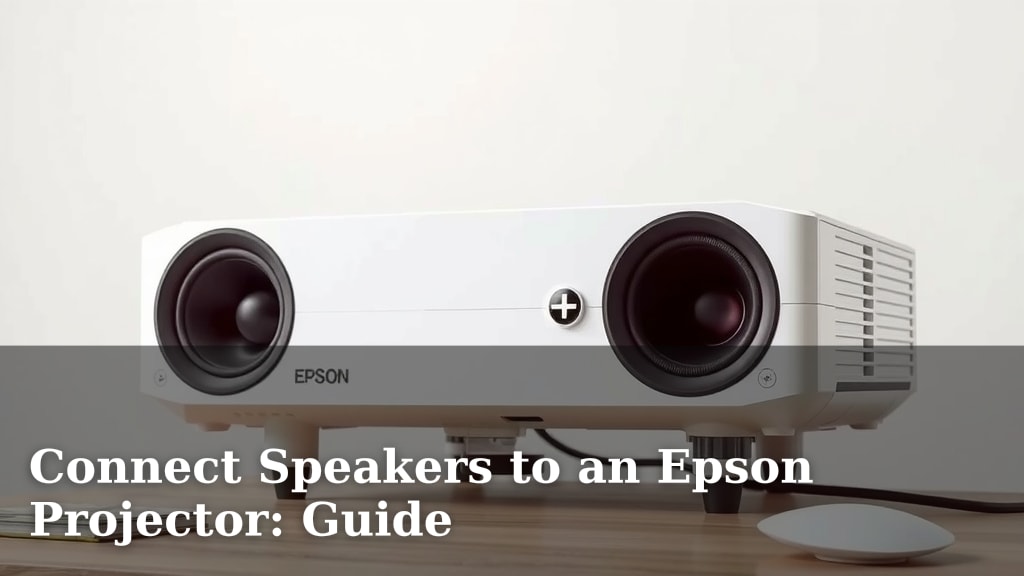
Connect Speakers to an Epson Projector: Guide
Yes, you can absolutely connect speakers to your Epson projector for a much richer audio experience. Most Epson projectors feature an audio output port, allowing you to easily hook up external speakers. This is the key to transforming your movie nights or presentations from good to great.
While your Epson projector has built-in speakers, they often lack the power and depth needed for a truly immersive sound. Connecting external speakers bypasses this limitation, giving you the freedom to choose the sound system that best suits your needs. You’ll be amazed at how much better your movies and games sound with dedicated audio.
- Identify your projector’s audio output port (usually a 3.5mm jack).
- Choose compatible speakers with the right connection.
- Connect the speakers to the projector using an audio cable.
- Adjust sound settings on your projector if needed.
Ready to hear the difference? Let’s walk through the simple steps to get your Epson projector singing with external speakers.
Getting Better Sound From Your Epson Projector
You’ve got your Epson projector set up, and the picture is amazing. But does the sound leave a little to be desired? You’re not alone. Many people find that built-in projector speakers are just okay. They’re fine for a quick presentation, but for movies or immersive gaming, you want more. Luckily, connecting external speakers is a simple fix.
Your Epson projector likely has a way to output audio. This means you can send the sound signal from your projector to another device. That device can be a soundbar, a stereo system, or even a pair of simple computer speakers. This guide will walk you through how to make that connection happen.
Finding Your Projector’s Audio Output
The first step is to locate the audio output port on your Epson projector. This is usually a 3.5mm audio jack. It looks very similar to the headphone jack on your smartphone or laptop. You’ll often find it on the back or side panel of the projector.
Look for an icon that resembles sound waves or headphones. Sometimes it’s just labeled “Audio Out” or “Line Out.” If you can’t find it, don’t worry. Your projector’s user manual is your best friend here. You can usually download a PDF version from the Epson website if you’ve lost the physical copy.
What If There’s No Clear Audio Output?
Some older or very basic projector models might not have a dedicated audio output jack. In this case, you might have to get a little creative. One option is to use a separate audio extractor if your projector only has HDMI output. These devices can pull the audio signal from an HDMI cable.
Another approach, though less common, is to use the audio input from your source device. For example, if you’re playing a movie from a Blu-ray player connected via HDMI, you could connect speakers directly to the Blu-ray player’s audio output. This bypasses the projector’s audio altogether. But for most modern Epson projectors, a direct audio out port is standard.
Choosing the Right Speakers for Your Setup
Now that you know where to connect, let’s talk about speakers. The type of speakers you choose depends on your needs and budget. For most users, a simple set of powered computer speakers or a basic soundbar works wonderfully.
Powered speakers have their own amplifier built-in. This means they don’t need a separate stereo receiver. They plug directly into the projector’s audio output. Soundbars are also an excellent choice. They offer a step up in sound quality and are very easy to set up.
Speaker Connections Explained
Most speakers designed for computers or home audio will have a standard 3.5mm audio input. This is perfect. You’ll just need a 3.5mm male-to-male audio cable. One end plugs into your projector, and the other goes into your speakers. It’s that simple.
If you’re using a more advanced audio system, like a home theater receiver, you might have different connection types. You could potentially use RCA cables. Some projectors might have RCA audio outputs (red and white jacks). In that case, you’d need an adapter cable or an RCA-to-3.5mm cable.
| Projector Output | Speaker Input | Cable Needed | Typical Use |
|---|---|---|---|
| 3.5mm Audio Out | 3.5mm Aux In | 3.5mm Male-to-Male | Computer speakers, soundbars |
| RCA Audio Out (Red/White) | RCA Aux In | RCA to 3.5mm adapter or cable | Older stereos, some soundbars |
| HDMI (with Audio) | HDMI In | HDMI Cable | A/V receivers, soundbars (via extractor) |
Hooking Everything Up: The Physical Connection
Once you’ve identified your ports and chosen your speakers, it’s time to connect them. First, make sure both your projector and your speakers are turned off and unplugged from the power outlet. Safety first!
Take your audio cable. Plug one end into the “Audio Out” or headphone jack on your Epson projector. Then, plug the other end into the “Audio In” or AUX input on your speakers or soundbar. Double-check that the connections are snug but don’t force them.
Powering On and Testing
Now, plug in your speakers and projector, and turn them on. You might need to adjust the projector’s settings to tell it to send audio to the external speakers. Some projectors do this automatically when a cable is detected.
Play some content – a movie trailer or a music video works well. You should now hear sound coming from your external speakers. If you don’t hear anything, don’t panic. We’ll cover troubleshooting in a moment.
Adjusting Sound Settings on Your Epson Projector
Most Epson projectors have a menu system that allows you to control audio settings. After connecting your speakers, you might need to tell the projector where to send the sound. Navigate through your projector’s on-screen menu.
Look for sections labeled “Audio,” “Sound,” or “Speaker Settings.” You should find an option to select “External Speakers,” “Audio Out,” or “Line Out.” Choose this option. This will disable the projector’s internal speakers and send the audio signal to your connected speakers.
Volume Control: Where’s the Knob?
Here’s a common point of confusion: Which device controls the volume? Usually, you’ll control the volume using your external speakers’ controls. Your projector’s volume buttons might still work if it’s sending a fixed line-level signal. However, it’s often best to set the projector volume to maximum and use the speaker’s volume knob.
Research we’ve found indicates that controlling volume at the speaker level can provide a cleaner signal (National Association of Broadcasters). So, set your projector’s volume to 100% and then use your speaker’s volume control to get the perfect sound level. This ensures you get the most out of your audio system.
Troubleshooting Common Issues
What if you’ve connected everything and still have no sound? Let’s quickly run through some common fixes. First, double-check all your cable connections. Make sure they are firmly seated at both ends. A loose cable is the most frequent culprit.
Next, verify your projector’s audio output setting. Did you select “External Speakers” or “Audio Out”? Sometimes this setting can revert after a power cycle. Also, ensure the volume on your external speakers is turned up. It sounds basic, but we’ve all forgotten that step!
A Quick Troubleshooting Checklist
Here’s a handy list to run through if you hit a snag:
- Confirm the correct audio output port is used on the projector.
- Ensure the speaker’s input matches the projector’s output type.
- Check that the audio cable is fully plugged in at both ends.
- Verify the projector’s sound setting is set to external speakers.
- Make sure the volume on your external speakers is turned up.
- Try a different audio cable if possible to rule out a faulty cable.
If you’re still having trouble, consult your projector’s manual or Epson’s support website. They often have detailed troubleshooting guides for audio issues.
Conclusion
You’ve now seen just how straightforward it is to connect external speakers to your Epson projector. By locating the audio output, choosing compatible speakers, and making the right connections, you can dramatically improve your viewing experience. Remember to adjust your projector’s sound settings to external audio. This simple upgrade transforms movie nights and presentations from just okay to truly immersive. So, go ahead and hook up those speakers – your ears will thank you!
Frequently Asked Questions
Can I use Bluetooth speakers with my Epson projector?
Some newer Epson projector models support Bluetooth audio output. You’ll need to check your projector’s specifications or menu options for Bluetooth pairing capabilities. If your projector doesn’t have built-in Bluetooth, you may need a separate Bluetooth transmitter that plugs into the projector’s audio jack.
What happens to the projector’s built-in speakers when I connect external ones?
Typically, when you connect external speakers and select the “External Speakers” or “Audio Out” option in your projector’s settings, the built-in speakers will be automatically disabled. This prevents audio from playing from both sources simultaneously, ensuring a clean sound output.
Is it better to control volume from the projector or the speakers?
For the cleanest audio signal, research we’ve found suggests it’s best to set your Epson projector’s volume to maximum and control the volume using your external speakers’ controls. This ensures your speakers receive the strongest possible audio signal to process.
What if my projector only has an HDMI port and no audio out?
If your projector only has HDMI and no dedicated audio output, you’ll need an HDMI audio extractor. This device connects between your source (like a Blu-ray player or streaming stick) and the projector’s HDMI input. It splits the audio signal from the HDMI, allowing you to connect speakers via its audio output ports.
How do I know if my speakers are compatible with my Epson projector?
Most Epson projectors use a standard 3.5mm audio output jack. Therefore, speakers with a 3.5mm auxiliary input (like most computer speakers or soundbars) will be compatible. Always check the connection types on both your projector and your speakers to ensure they match or that you have the correct adapter cable.