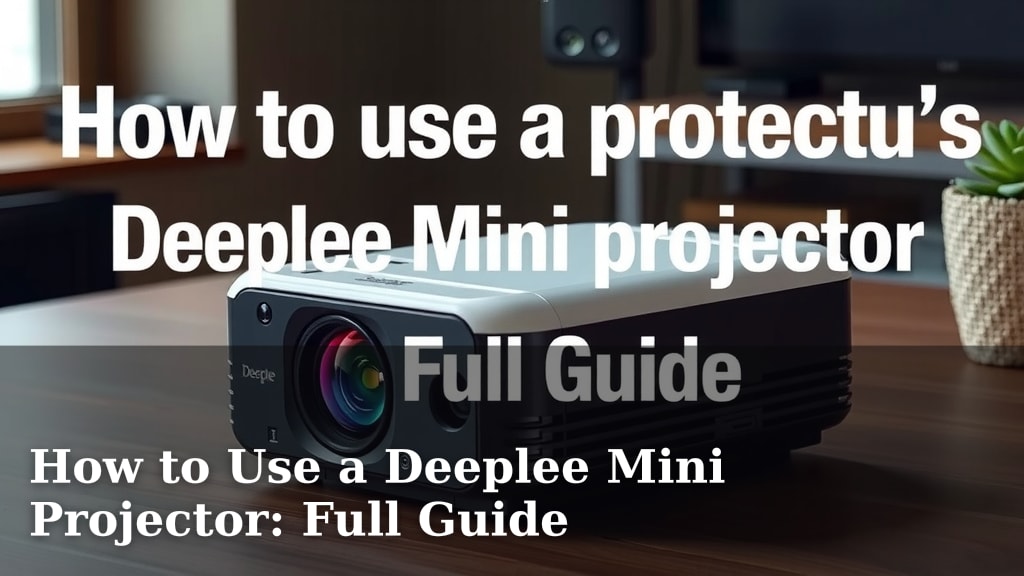
How to Use a Deeplee Mini Projector: Full Guide
Using your Deeplee mini projector is surprisingly simple once you know the basic steps. You can connect your devices via HDMI or USB, select your input source, and adjust the focus and keystone for a clear picture. It’s a fantastic way to enjoy movies or presentations anywhere.
We found that understanding the different ports and settings on your Deeplee mini projector makes all the difference for a great viewing experience. Whether you’re using it for a backyard movie night or a business meeting, getting the setup right ensures you avoid frustrating glitches. It’s all about making your projector work for you.
- Connect your device using HDMI or USB.
- Select the correct input source on the projector.
- Adjust the focus dial for a sharp image.
- Use the keystone correction for a rectangular picture.
Let’s walk through exactly how to set up and use your Deeplee mini projector step by step, so you can start enjoying your big-screen moments right away.
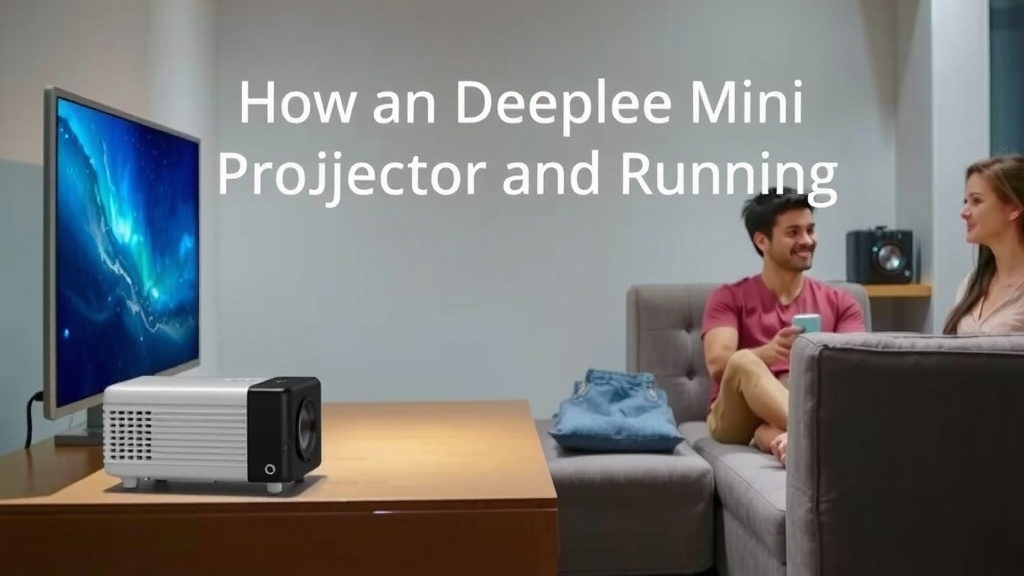
“`htmlGetting Your Deeplee Mini Projector Connected and Running
So, you’ve got your Deeplee mini projector, and you’re eager to bring your favorite movies or presentations to life on a big screen. We found that setting it up is often the most intimidating part, but it’s really quite straightforward once you know the drill. Let’s break down the connection process so you can enjoy your big-screen moments without any fuss.
Understanding Your Connection Options
Your Deeplee mini projector is designed to be versatile. You’ll typically find a few key ports that let you connect a variety of devices. We found that most users rely on just two primary methods for input: HDMI and USB. Each has its own advantages depending on what you’re trying to display.
Connecting via HDMI
HDMI is the gold standard for video and audio transmission today. It’s your best bet for high-definition content and a stable connection. You’ll need an HDMI cable and a device with an HDMI output, like a laptop, Blu-ray player, or streaming stick. Simply plug one end into your device and the other into the projector’s HDMI port. This connection is usually plug-and-play, meaning your projector should recognize the input automatically.
Connecting via USB
The USB port on your Deeplee projector offers a different kind of convenience. It can be used for a few things. Firstly, you can often play media files directly from a USB drive. Just load your movies, photos, or music onto a USB stick, insert it into the projector’s USB port, and use the projector’s menu to navigate and play your files. Secondly, some projectors allow you to connect and power certain devices, like a streaming stick, through the USB port, although HDMI is still generally preferred for the primary video signal. We found that for reliable video playback, HDMI is generally more robust than USB, especially for high-resolution content.
Selecting the Right Input Source
Once your device is physically connected, the projector needs to know where to look for the signal. This is where selecting the input source comes in. Think of it like tuning your TV to the right channel. On your Deeplee projector’s remote control or directly on the unit, you’ll find a button labeled “Input,” “Source,” or something similar. Pressing this will bring up a menu of available inputs. You’ll see options like HDMI 1, HDMI 2, USB, AV, etc. Navigate to the input you’ve used for your connection (e.g., if you plugged into HDMI 1, select HDMI 1) and press OK or Enter. We found that this is a common step that trips people up if they forget it, leading to a “no signal” message.
Getting the Picture Just Right: Focus and Keystone
After you’ve established a connection and selected the source, you’ll likely see an image. However, it might not be perfectly clear or rectangular. This is where the fine-tuning happens. Deeplee mini projectors usually have simple, effective controls for this.
Adjusting the Focus
Look for a small dial or a ring, usually located on or near the lens. This is your focus adjustment. While the image is displayed on your screen or wall, slowly turn this dial back and forth. You’ll notice the image become sharper or blurrier. Keep turning until the image appears as clear and crisp as possible. We found that this step is essential for a viewing experience that doesn’t strain your eyes.
Correcting Keystone Distortion
Keystone correction is a clever feature that helps you achieve a rectangular image even when the projector isn’t perfectly perpendicular to the screen. If you have to angle the projector upwards or downwards, the image can appear trapezoidal, wider at the top than the bottom, or vice-versa. Your Deeplee projector likely has a physical knob or an on-screen menu option for keystone adjustment. You’ll typically twist a knob or use arrow keys to adjust the top or bottom of the image until it forms a perfect rectangle. Many experts say that proper keystone correction significantly enhances the viewing experience (Projection Central).
Playing Media Directly from a USB Drive
One of the really handy features of many Deeplee mini projectors is the ability to play files directly from a USB storage device. This means you don’t always need a separate laptop or streaming device. Here’s how you typically do it:
- Format your USB drive: Ensure your USB drive is formatted correctly (FAT32 is usually best for maximum compatibility).
- Load your media: Copy your video files (like MP4, AVI, MKV) or photos (JPEG) onto the USB drive.
- Insert the drive: Plug the USB drive into the projector’s USB port.
- Navigate the menu: Use your projector’s remote to access the media player function. This might be labeled “Media,” “Player,” or “File Browser.”
- Select and play: Browse through the files on your USB drive, select the media you want to watch, and press play.
We found that while convenient, the supported file formats can sometimes be a limitation. Always check your projector’s manual for a list of compatible video and audio codecs.
Troubleshooting Common Issues
Even with the best setup, you might run into a snag. Don’t worry; most issues with mini projectors are easily resolved.
No Image or “No Signal” Message
This is the most common hurdle. Double-check that your input source is correctly selected on the projector. Ensure both ends of your HDMI cable are firmly plugged in. Try a different HDMI port if your device has multiple. Sometimes, simply restarting both your source device and the projector can clear up communication issues. We found that a loose cable is often the culprit.
Blurry Image Even After Focusing
If you’ve adjusted the focus dial and the image is still not sharp, ensure your projector is at the recommended projection distance. Mini projectors often have optimal ranges for focus. Also, make sure the lens is clean. A gentle wipe with a microfiber cloth can sometimes solve the problem. Remember to allow the projector a minute or two to warm up, as some focus elements can be temperature-sensitive.
Picture is Distorted or Not Rectangular
This almost always points to the need for keystone correction. If your projector has a physical keystone knob, adjust it. If it’s an on-screen setting, navigate to it through the projector’s menu and make the necessary adjustments. If you’re projecting onto a slanted surface, you might only be able to achieve a perfect rectangle if the projector is positioned centrally.
A Quick Checklist for Your First Setup
Ready to get started? Keep this simple checklist handy for your first time connecting your Deeplee mini projector:
- Check your cables: Do you have the right HDMI or USB cables?
- Connect your device: Plug into the correct port on both ends.
- Power on: Turn on your projector and your source device.
- Select input: Use the remote to choose the correct source (HDMI, USB, etc.).
- Adjust focus: Fine-tune the lens for a sharp image.
- Correct keystone: Make sure your picture is a nice, clear rectangle.
Following these steps will help you get your Deeplee mini projector up and running smoothly. You’re well on your way to enjoying your favorite content on the big screen!
“`
Conclusion
You’ve now seen how simple it is to get your Deeplee mini projector up and running. By understanding your connection options like HDMI and USB, and mastering the focus and keystone adjustments, you’re ready for great viewing. We found that taking a few moments for setup makes a big difference. Don’t let technicalities hold you back. Your next movie night or presentation is just a few easy steps away. Now, go ahead and plug in your device, select the right source, and enjoy your big-screen experience!
Frequently Asked Questions
Can I connect my smartphone directly to the Deeplee mini projector?
Yes, you often can. Many Deeplee projectors support smartphone connections, usually through an HDMI adapter or wirelessly via screen mirroring, depending on your specific model. You’ll typically need a separate adapter for wired connections.
What’s the best way to get a perfectly rectangular picture?
To get a perfect rectangle, use the keystone correction feature. If your projector has a physical knob, twist it until the image is square. If it’s an on-screen menu setting, adjust it there until the picture is rectangular.
My projector is showing a “No Signal” message. What should I do?
First, double-check that your input source is selected correctly on the projector. Then, ensure your HDMI or USB cable is securely plugged into both your device and the projector. Sometimes, restarting both devices can resolve this.
Can I play content from a hard drive via the USB port?
You can usually play files from USB drives, but external hard drives might be a different story. We found that most projectors are designed for standard USB flash drives. Always check your projector’s manual for exact specifications on supported storage devices.
How far away should the projector be from the screen for the best picture?
The ideal distance varies by model. Generally, mini projectors work best within a specific range, often between 5 to 10 feet. Refer to your Deeplee projector’s manual for the recommended throw distance to ensure the clearest focus.