Connect a Phone to an Abox Projector: Easy Guide
Yes, you can easily connect your phone to an Abox projector to enjoy movies, presentations, or gaming on a big screen. Most Abox projectors offer wireless mirroring and wired connections, making it simple to share your phone’s content. You’ll likely need a few basic accessories depending on your phone and projector model, but the process is usually quite straightforward.
Connecting your phone opens up a world of possibilities for home entertainment and portable presentations. Whether you’re streaming your favorite shows or showing off vacation photos, having a clear, large display makes a big difference. We found that understanding your phone’s output options and your projector’s input ports is key to a successful connection.
- Mirror your phone screen wirelessly.
- Use a cable for a wired connection.
- Check your phone’s compatibility.
- Ensure your projector has the right ports.
- Enjoy movies, games, and more on the big screen.
Let’s walk through exactly how to get your phone hooked up to your Abox projector, step by step.
Linking Your Phone to an Abox Projector: A Simple How-To
Connecting your smartphone to your Abox projector is easier than you might think. You’re probably excited to cast your favorite shows or share vacation photos on a massive screen. We found that most Abox models are designed with user-friendliness in mind. You have two main ways to get connected: wirelessly or with a simple cable. Let’s figure out which method works best for you.
Wireless Connection: Cutting the Cord
Wireless connection offers the ultimate freedom. No tangled wires means a cleaner setup and more flexibility in where you place your projector. Most modern smartphones and Abox projectors support wireless mirroring technologies. This allows your phone’s screen to be displayed directly on the projector.
Screen Mirroring Options
The exact method for wireless connection can vary slightly depending on your phone’s operating system (iOS or Android) and your specific Abox projector model. We’ve found that two primary technologies are commonly used:
Using Built-in Mirroring Features (iOS & Android)
Many smartphones have a built-in feature for screen casting. For iPhones, this is called AirPlay. Android phones often refer to it as Miracast or a similar “Cast” or “Screen Share” function. Your Abox projector needs to support these protocols. Many do, often found within the projector’s settings menu under “Network,” “Connection,” or “Screen Mirroring.”
Here’s a general process:
- Turn on your Abox projector.
- Navigate to the screen mirroring or casting option in your projector’s menu. Make sure it’s set to receive a signal.
- On your phone, open the control center (for iPhone) or the quick settings panel (for Android).
- Look for the “Screen Mirroring,” “Cast,” or “AirPlay” option.
- Your phone will scan for available devices. Select your Abox projector from the list.
- You might see a prompt on your projector or phone asking you to confirm the connection. Accept it.
We found that a strong Wi-Fi signal is essential for smooth wireless streaming. If your connection is laggy or drops frequently, it’s often due to a weak Wi-Fi network.
Using Third-Party Apps
In some cases, your Abox projector might not have native support for your phone’s mirroring feature, or you might prefer more control. You can often download third-party apps that facilitate screen mirroring. These apps typically work by connecting both your phone and projector to the same Wi-Fi network.
Search your phone’s app store for “projector screen mirroring” or “wireless display” apps. Read reviews carefully to choose a reliable one. Some popular options might be specific to certain projector brands, while others are more universal.
Troubleshooting Wireless Connections
Sometimes, wireless connections can be a bit tricky. Don’t get discouraged! We’ve found these common issues and solutions:
- Device Not Appearing: Ensure both your phone and projector are on the same Wi-Fi network. Restart both devices and try again.
- Lagging Video: A weak Wi-Fi signal is the usual culprit. Try moving your router closer or reducing the number of devices using the network simultaneously.
- Connection Dropped: This can also be a Wi-Fi issue or sometimes an incompatibility. Check your Abox projector’s manual for supported mirroring protocols.
Wired Connection: The Reliable Route
For the most stable and reliable connection, especially for fast-paced gaming or important presentations, a wired connection is often best. This method bypasses Wi-Fi entirely and uses a physical cable to transmit video and audio from your phone to the projector.
Identifying Necessary Cables and Adapters
The type of cable you need depends on the ports available on both your phone and your Abox projector. We found that most modern phones use USB-C or Lightning ports for charging and data transfer.
For Android Phones (USB-C)
If your Android phone has a USB-C port and your Abox projector has an HDMI port (which most do), you’ll likely need a USB-C to HDMI adapter or cable. Make sure the adapter or cable you choose explicitly supports video output (sometimes labeled as “DisplayPort Alternate Mode” or “DP Alt Mode”). Not all USB-C cables are created equal!
For iPhones (Lightning)
iPhones use a Lightning port. You’ll need an Apple Lightning Digital AV Adapter (or a certified third-party MFi-certified adapter) and an HDMI cable. The adapter plugs into your iPhone’s Lightning port, and you then connect the HDMI cable from the adapter to your Abox projector’s HDMI port.
Other Connections (Less Common)
Older phones might have had different ports like micro-USB or even proprietary connectors. If you have an older device, consult its manual to see if video output is supported and what type of adapter might be available. You might also find projectors with older inputs like VGA, but HDMI is the standard nowadays.
Step-by-Step Wired Connection Guide
Getting connected with a cable is wonderfully straightforward. Here’s how:
- Turn off your Abox projector and unplug it from power (just to be safe).
- Connect the appropriate adapter to your phone (USB-C or Lightning).
- Plug one end of your HDMI cable into the adapter.
- Connect the other end of the HDMI cable to the HDMI input port on your Abox projector.
- Plug your projector back into power and turn it on.
- On your Abox projector’s remote control, select the correct HDMI input source (e.g., HDMI 1, HDMI 2) that you plugged the cable into.
- Your phone’s screen should now appear on the projector. For some phones, you might need to grant permission for the connection.
We found that wired connections generally offer the best picture quality and lowest latency, which is crucial for gaming or watching action movies without stuttering.
Checking Your Phone and Projector Compatibility
Before you buy any cables or adapters, it’s wise to do a quick check. This saves you time and potential headaches. Here’s what we recommend:
Your Phone’s Capabilities
Does your phone support video output through its USB-C or Lightning port? For most smartphones released in the last 5-7 years, this is usually supported, but it’s not guaranteed for every single model. Check your phone’s user manual or search online for “[Your Phone Model] video out” or “[Your Phone Model] screen mirroring.”
Your Abox Projector’s Ports
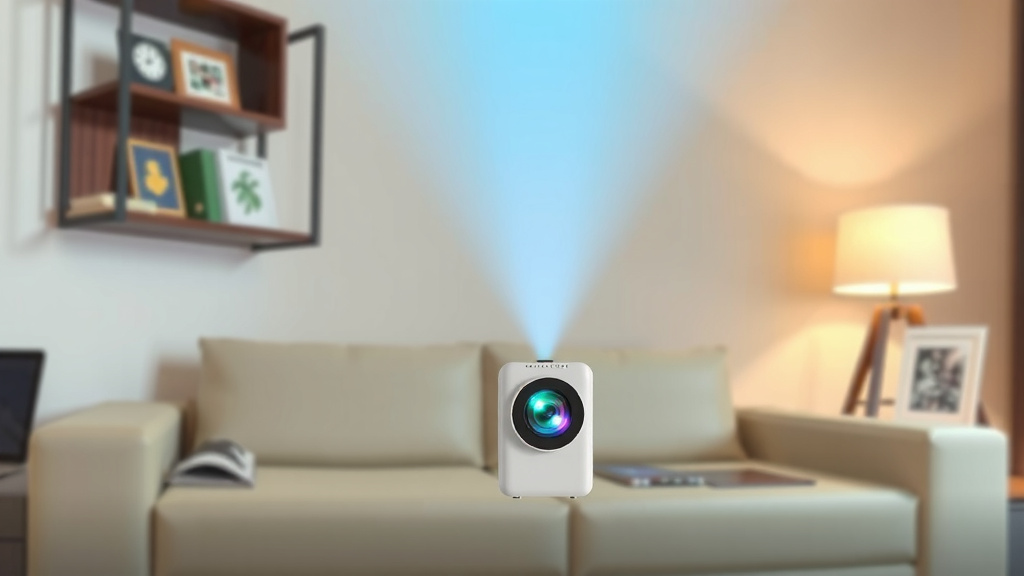
Look at the back or side of your Abox projector. You should see several ports. The most important one for this connection is typically an HDMI input. If your projector lacks HDMI, it might have older connectors like VGA or AV, which would require different, often less ideal, adapters.
A Quick Compatibility Checklist
Let’s make sure you’re ready to go:
- Phone Model Known? Yes / No
- Phone Supports Video Output? Yes / No / Unsure
- Projector Has HDMI Input? Yes / No
- Correct Adapter/Cable Identified? Yes / No / Unsure
If you answered “No” or “Unsure” to any of these, take a moment to find the information. A quick search for your specific Abox projector model online should show you its specifications and available ports.
Conclusion
Connecting your phone to your Abox projector is a simple way to enjoy your favorite content on a big screen. You’ve learned about both wireless mirroring and wired connections, and how to check your device compatibility. We’ve seen that wireless offers convenience, while wired provides the most stable experience. Whichever method you choose, the steps are straightforward.
Now that you know how to connect, your next step is to gather any necessary cables or adapters. Then, follow the simple setup guides to start enjoying your movies, photos, or games on a much larger display. Get ready for a whole new viewing experience!
Frequently Asked Questions
My phone isn’t showing up on the projector’s wireless list. What should I do?
Make sure both your phone and your Abox projector are connected to the exact same Wi-Fi network. Sometimes, simply restarting both devices can resolve connection issues. Check your projector’s manual to ensure it supports the mirroring protocol your phone is using.
Can I charge my phone while it’s connected via HDMI cable?
If you’re using a USB-C to HDMI adapter that has an additional USB-C port, you can often charge your phone simultaneously. This is particularly helpful for long viewing sessions or presentations. The Apple Lightning Digital AV Adapter also has a port for charging.
Will screen mirroring drain my phone’s battery quickly?
Yes, screen mirroring, especially wireless, can use a significant amount of battery power. This is because your phone is actively sending video signals and maintaining a Wi-Fi connection. Using a wired connection with charging capabilities can help mitigate this.
What if my Abox projector only has older input ports like VGA?
If your projector lacks HDMI, you might need a different type of adapter for your phone. For example, you could look for a USB-C to VGA adapter or a Lightning to VGA adapter, if your phone supports video output via those ports. However, picture quality may not be as good as with HDMI.
How do I know if my phone’s USB-C port supports video output?
Most modern phones with USB-C ports do support video output, often referred to as DisplayPort Alternate Mode (DP Alt Mode). The best way to confirm is to check your phone’s user manual or search online for “[Your Phone Model] video out” or “[Your Phone Model] DP Alt Mode support.”